

Supported Model Formats
Model formats supported by ZETIC Melange: PyTorch and ONNX.
Melange supports two model formats for on-device deployment. Choose the format that best matches your training framework.
Supported Formats
| Format | Extension | Status | Recommended |
|---|---|---|---|
| PyTorch Exported Program | .pt2 | Supported | Yes |
| ONNX | .onnx | Supported | Yes |
Choosing a Format
- PyTorch users: Use PyTorch Exported Program (
.pt2). Requires PyTorch >= 2.9. - TensorFlow / Keras / scikit-learn users: Convert to ONNX format.
Input Requirements
Regardless of format, all models require:
- NumPy input files (
.npy): Sample inputs that define the expected tensor shapes and data types. - Fixed input shapes: NPU compilation hard-codes input shapes for maximum throughput. Even if your original model supports dynamic sizes, the Melange-compiled model will accept only the exact shape provided during upload.
NPU compilation hard-codes input shapes to maximize throughput. Even if your original model supports dynamic sizes, the accelerated Melange model will accept only the exact shape of the sample input provided during upload.
Graph Constraints
Melange compiles your model into a static computation graph, which places constraints on the graph itself beyond just input shapes. Address these before exporting.
Fixed Shapes Throughout the Graph
Every tensor shape inside the graph — not only the inputs — must resolve to a constant at export time. If any intermediate operation produces a shape that depends on runtime values, compilation will fail.
Common sources of dynamic internal shapes:
- Data-dependent control flow (
if/whileconditioned on tensor values) - Operations like
nonzero,masked_select, or slicing with indices that aren't compile-time constants - Variable-length sequences without padding
Refactor these into fixed-shape equivalents (for example, pad to a maximum length and apply a mask instead of gathering a dynamic subset) so that all shapes become constants during export.
No Complex Number Support
The Melange backend does not support complex dtypes (complex64, complex128). If your model uses complex tensors — for instance, FFT outputs — rewrite those portions to carry real and imaginary parts as separate float tensors.
For a complex tensor of shape (N,), use a float tensor of shape (N, 2) (or two tensors of shape (N,) for the real and imaginary parts) and implement complex arithmetic with real-valued operations.
Verifying Input Order and Shapes
Melange compiles your model into a static hardware graph. This means consistent input order and input shapes are mandatory for execution.
Why Order Matters
The internal computation graph expects data in specific slots (e.g., input_zero at index 0, input_one at index 1). If you swap them during upload or inference, the model will produce garbage results or crash.
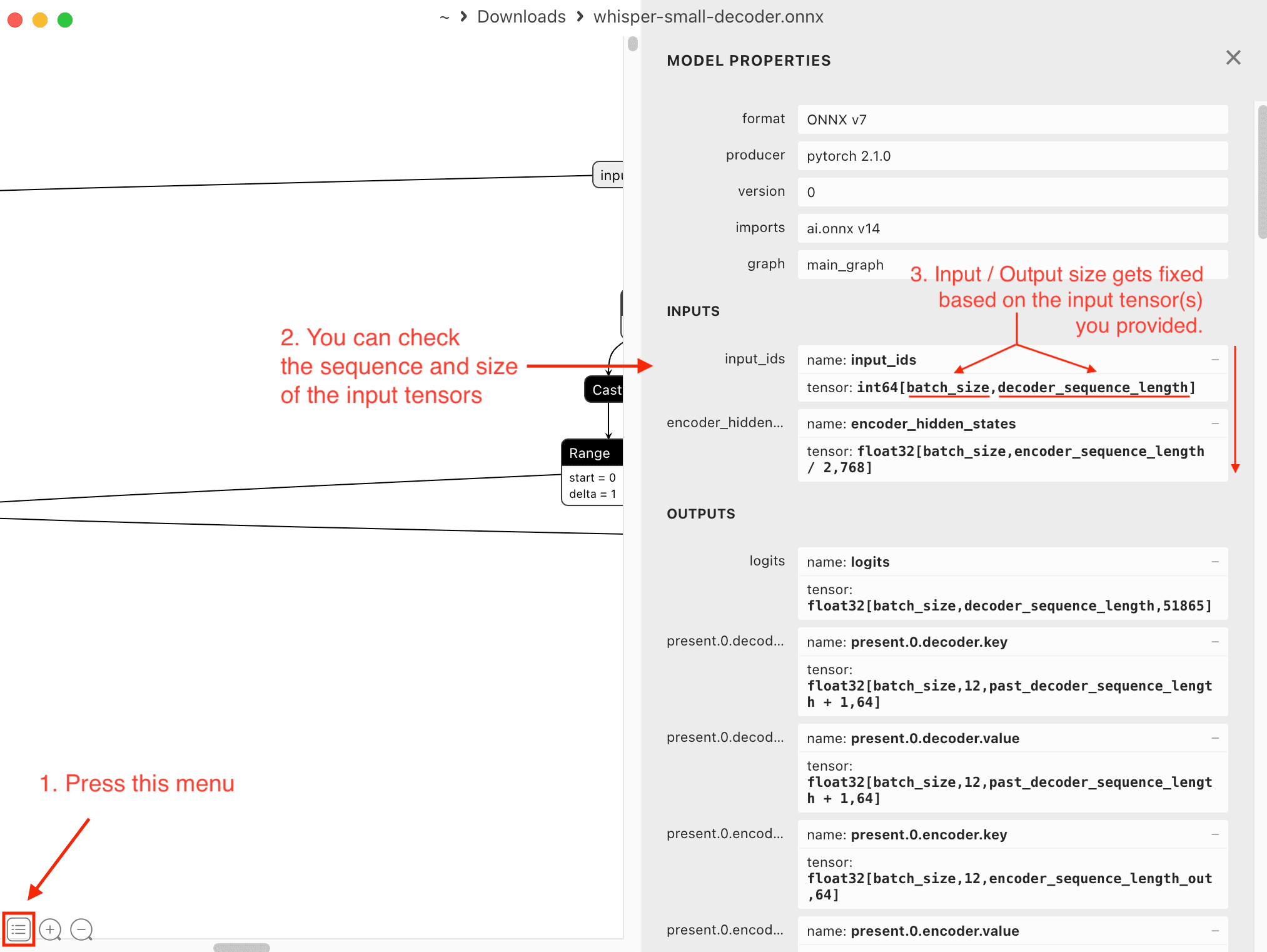
Inspecting with Netron
We recommend using Netron to visualize your model's input signature:
- Open your model (
.pt2or.onnx) in Netron. - Locate the Input Nodes at the top of the graph.
- Note the vertical order: the top-most input is Index 0, the next is Index 1, and so on.
You must provide inputs in this exact order when:
- Uploading the model and sample inputs via the Melange Dashboard.
- Calling the
run()function in your Android/iOS app.
Next Steps
- PyTorch Export: Export PyTorch models to
.pt2 - ONNX Models: Convert TensorFlow, Keras, and scikit-learn models
- Pre-built Models: Use ready-to-run models from Dashboard or Hugging Face